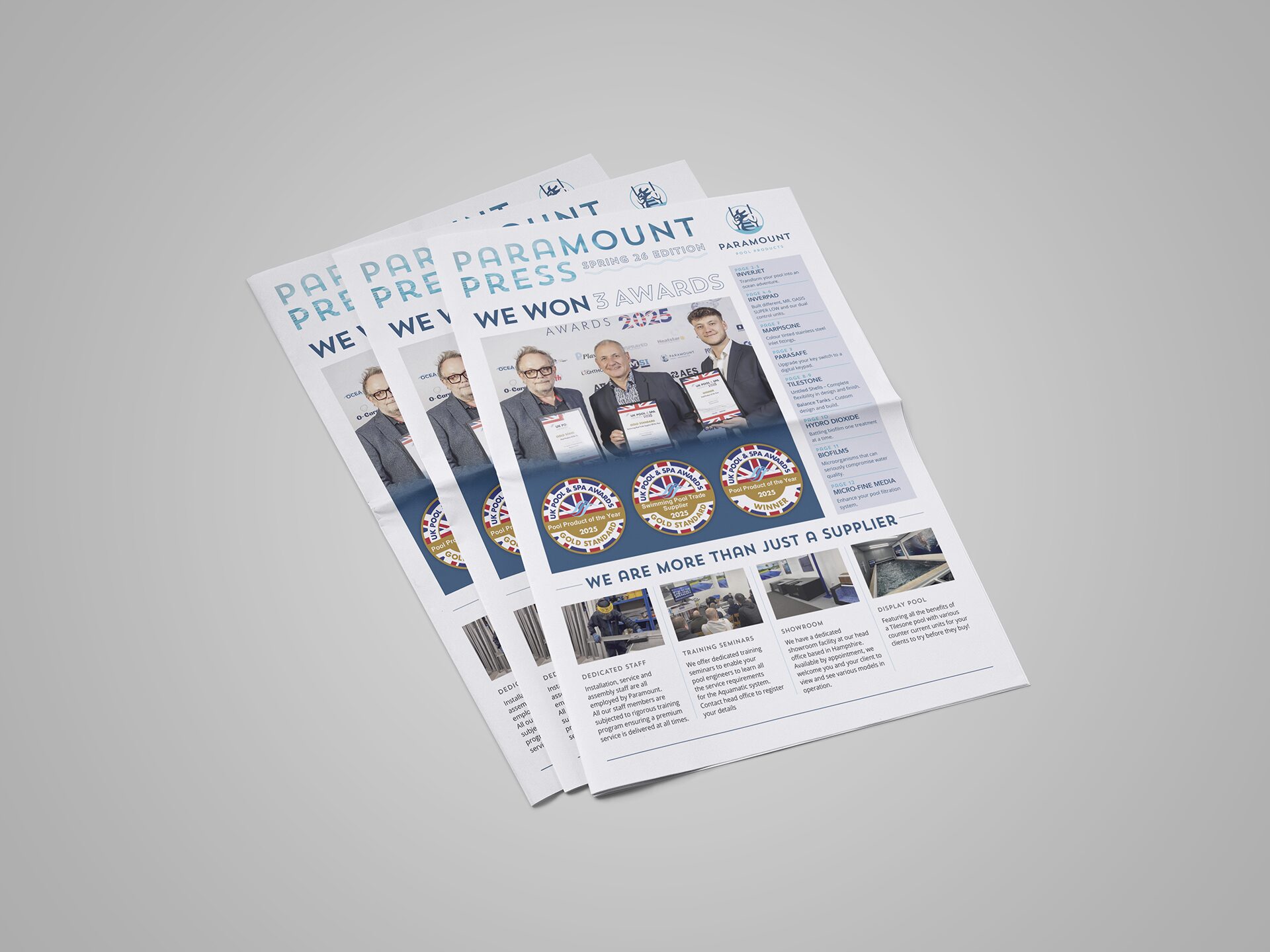


PDFs are one of the most common file formats for sharing documents. They preserve layout and styling regardless of device or software, which makes them ideal for proofs, contracts, reports, and design drafts. That said, editing the content of a PDF directly isn’t always straightforward, especially if you don’t have the original source file.
This guide explains how to mark up a PDF clearly and efficiently using tools like Adobe Acrobat Reader, and how to give feedback that your design team or collaborators can action easily.
Editing Interactive PDFs the Right Way
A PDF is usually created from another file (such as InDesign, Illustrator, Word, or another design app). Changes made directly inside the PDF can:
Break the layout or alignment because text reflows unpredictably.
Alter fonts or spacing, especially if the PDF used embedded or custom fonts.
Flatten layers, making further edits harder for the design team.
Because of this, the best way to request changes is to mark up the PDF with clear feedback rather than trying to change the content inside the file itself.
How to Save Time (and Avoid Rework)
One of the biggest time-savers is clarity upfront.
Here’s how you can help streamline the process:
Consolidate feedback into one clear round of amends
Use consistent wording when requesting changes
Reference page numbers, field names, or screenshots
Avoid duplicate or conflicting comments from multiple reviewers
Using a proper markup process (covered below) reduces back-and-forth and helps the Glow team implement changes quickly and accurately.
How to Use Adobe Acrobat Reader to Mark Up a PDF
Adobe Acrobat Reader is free and widely used for annotating PDFs. Open your PDF in Acrobat Reader and follow these steps:
Open your PDF in Acrobat Reader
Go to Tools → Comment to access the markup options.
Use the annotation tools to show what needs changing:

Add a comment
Adds a general comment without marking specific text.

Replace selected text
Suggests replacement wording by striking through text and adding new text inline.

Insert text
Indicates where new text should be added.

Strikethrough
Marks text for deletion without altering the original content.

Highlight
Highlights selected text to indicate copy changes or emphasis.

Add text comment
Adds a freestanding text box comment on the page.

Attach file
Attaches a supporting file to the PDF as a comment.

Underline
Emphasises text or flags wording for review.
4. Save your marked-up PDF
Use File → Save to preserve your comments before sending the file back to your team.
Tips for Clear and Efficient Feedback
Good markup isn’t just about what you mark; it’s about how you communicate it.
Be specific
Reference the page number and exact text you mean. If you need the layout changed, describe how in plain language (for example “increase heading size to 24pt” or “align text left like page 2”).Group your feedback
Try to consolidate all your changes into a single round of feedback rather than multiple back and forth. This saves time.Use screenshots when needed
If something isn’t obvious in the text, take a screenshot and attach it as a comment.Keep wording consistent
Use the same labels within your comments so there’s no ambiguity.
What Happens After You Mark Up a PDF
Your design team will take your annotated PDF back into their original design file to implement changes. Direct edits inside a PDF can be unpredictable, so markup ensures they don’t accidentally break the layout or styling.
With clear feedback:
revisions are faster,
communication is less confusing,
and the final document remains true to the original design.
In Summary
Marking up PDFs is a reliable way to review and request changes without risking layout or formatting issues. Using tools like Adobe Acrobat Reader, you can add comments, highlights, and annotations that your team can action accurately and quickly. Keep your notes clear and structured, and always save a copy before returning your feedback.